
Overlays in OBS
GRiMbOS creates overlay web pages. OBS shows each page through a Browser Source.
Before you begin
Create and arrange the overlay in Overlays > Browser & Chat > Overlay Browser. See Overlay Browser for object limits and layout controls.
Use a canvas that matches the OBS output:
| Output | Canvas width | Canvas height |
|---|---|---|
| 1080p landscape | 1920 | 1080 |
| 1080p portrait | 1080 | 1920 |
| 720p landscape | 1280 | 720 |
Custom canvases may be 320 to 7680 pixels wide and 240 to 4320 pixels high. A mismatched Browser Source size changes object placement and scale.
Add a Browser Source
- Open Overlays > Browser & Chat > Overlay Browser.
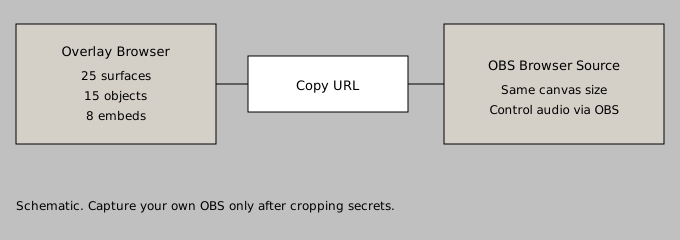
- Find the required overlay and click Copy URL.
- In OBS, select the scene that will show the overlay.
- In Sources, click +, then select Browser.
- Create a new source and give it a clear name.
- Paste the copied address into URL.
- Set Width and Height to the overlay canvas size.
- Check Control audio via OBS if you want the Browser Source to appear as a separate source in the OBS Audio Mixer.
- Leave Shutdown source when not visible clear.
- Click OK.
Audio: Control audio via OBS exposes Browser Source audio as a separate source in the OBS Audio Mixer. It is not required for Browser Source audio to reach the stream. Check it when you want mixer controls, monitoring, filters, or a separate level meter for the overlay. The Sounds object may play sounds at the same time. Video and GIF playback uses the queue for its assigned object.
URL behavior
Copy URL builds a full address from the GRiMbOS address currently open in the browser. If OBS runs on another PC, that address must resolve to the GRiMbot computer from the OBS PC. A localhost address points back to the OBS PC and works only when GRiMbot also runs there.
Each overlay page keeps one WebSocket connection and receives updates only for its assigned objects. Layout and configuration changes are pushed to connected pages.
After changing a URL or layout, use Refresh cache of current page in the OBS Browser Source properties. You may instead check Refresh browser when scene becomes active. Routine counter, chat, and event updates do not require a manual refresh.
Deleting an overlay does not remove its source from OBS. Remove the old Browser Source or replace its URL. A source that still holds the old page may show stale content until OBS refreshes it.
Verify the source
- Confirm the Browser Source width and height match the GRiMbOS canvas.
- If you need separate mixer control, confirm Control audio via OBS is checked and the source appears in the OBS Audio Mixer.
- Keep the scene visible while testing.
- Use the test control in the matching GRiMbOS window.
- Check the OBS Audio Mixer when testing sound.
Chat tests stay inside the overlay system and do not post to Twitch. Event Alert Preview may run configured Actions and range media. Read Event Alerts before using it during a live Stream Session.
If nothing appears
- Confirm the required object is assigned and visible in Overlay Browser > Layout.
- Confirm OBS uses the current copied URL.
- Confirm the OBS PC can open that URL in a normal browser.
- Refresh the Browser Source cache.
- Check System > Connection Status for the overlay connection.
- Test the specific object again.
Separate settings pages are authoritative for Chat Overlay, Bot Overlay, Walk-On & Clip Overlay, and Event Alerts.